Top 25 Microsoft Excel Shortcuts to Work Faster and Smarter
Mastering Microsoft Excel keyboard shortcuts is one of the fastest ways to boost productivity, accuracy, and professional confidence. Whether you're a student, analyst, entrepreneur, or corporate professional, these 25 essential Excel shortcuts will transform the way you work.
File Management Shortcuts
Ctrl + N – Create a new workbook instantly.
Ctrl + S – Save your file frequently and avoid data loss.
Ctrl + P – Open the print window immediately.
Editing Essentials
Ctrl + Z – Undo last action.
Ctrl + Y – Redo action.
Ctrl + C – Copy selected content.
Ctrl + V – Paste copied content.
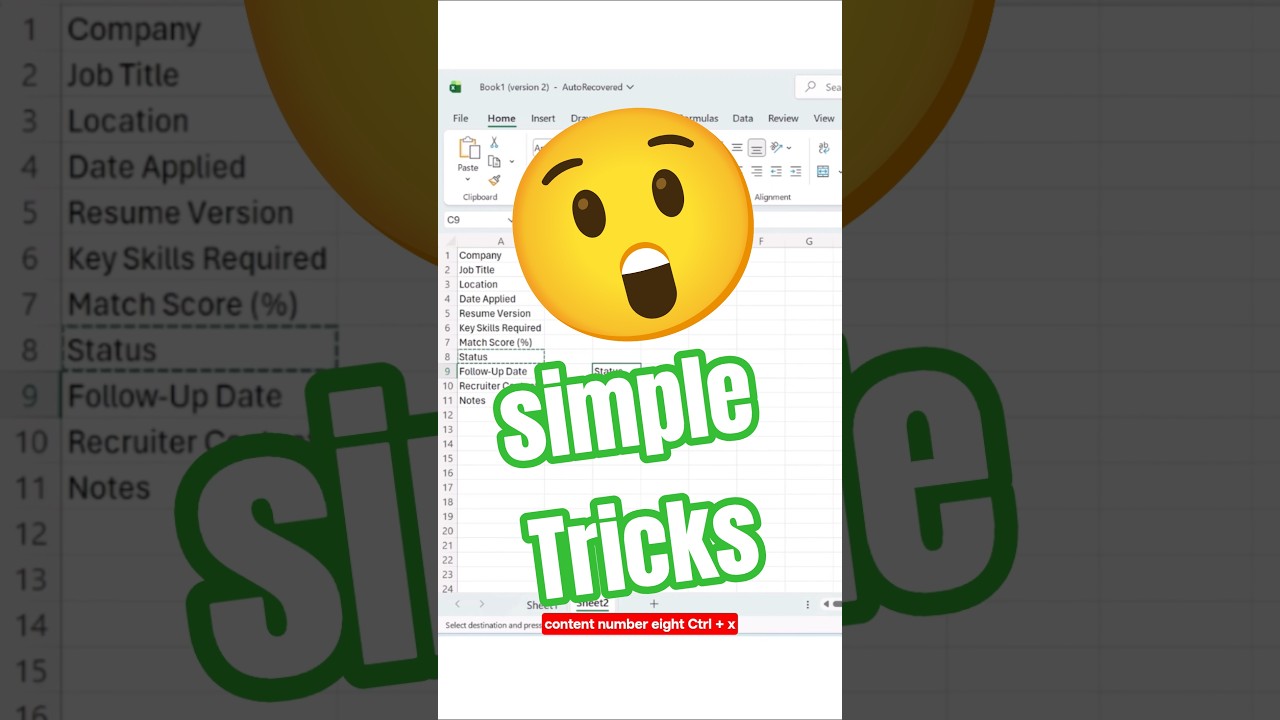
Ctrl + X – Cut selected content.
F2 – Edit the active cell quickly.
Navigation Shortcuts
Ctrl + Arrow Keys – Jump to the edge of data.
Ctrl + Home – Go to cell A1 instantly.
Ctrl + End – Move to the last used cell.
Ctrl + G – Open Go To dialog box.
Search and Data Management
Ctrl + F – Find any value in your sheet.
Ctrl + H – Find and replace instantly.
Ctrl + Shift + L – Toggle filters on/off.
Ctrl + T – Convert data range into a professional table.
Alt + = – AutoSum instantly.
Formatting Shortcuts
Ctrl + B – Bold text.
Ctrl + I – Italic text.
Ctrl + U – Underline text.
Ctrl + 1 – Open Format Cells dialog.
Ctrl + Shift + + – Insert new row or column.
Ctrl + - – Delete row or column.
Ctrl + Enter – Fill all selected cells simultaneously.
Why Excel Shortcuts Matter
Using Excel shortcuts daily enhances efficiency, improves workflow speed, and positions you as a highly competent professional. Mastery of these keyboard combinations allows you to analyze data faster, format reports efficiently, and execute tasks with precision.