Create OMR Sheet in MS Word Without Software
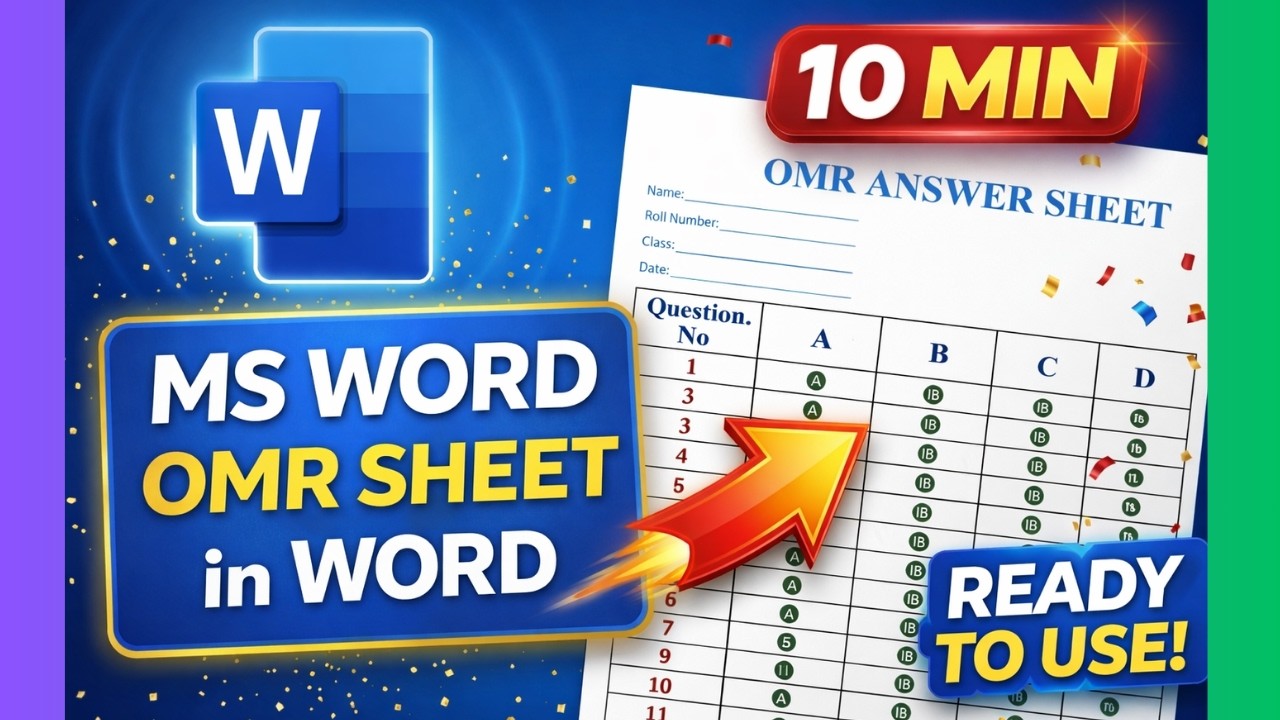
Creating a professional OMR sheet without expensive tools is now possible using just Microsoft Word. This guide walks you through a simple yet powerful method to design printable OMR sheets with perfect alignment.
Why Create OMR Sheets in Word?
Many educators and institutions rely on costly software. However, with smart formatting tricks in Word, you can create clean, professional OMR sheets quickly and efficiently.
Step-by-Step Process
1. Setup Document
Start with a blank document. Set margins, choose A4 size, and keep orientation as portrait for standard answer sheets.
2. Add Candidate Details Section
Include fields like Name, Roll Number, Class, and Date. Use lines for clarity and alignment.
3. Insert Table for Questions
Create a table with columns for question numbers and options (A, B, C, D). Adjust alignment to center for uniformity.
4. Generate OMR Circles
Use Unicode characters and ALT+X shortcut to convert codes into circular bubbles. This ensures perfect OMR-style design.
5. Format and Customize
Apply fonts like Times New Roman, adjust sizes, and add borders or themes for a professional look.
6. Export to PDF
Convert your document into PDF for printing and distribution. You can also add watermarks for confidentiality.
Pro Tips
- Use consistent spacing for accurate scanning
- Keep bubbles aligned using tables
- Test print before final distribution
Learn More Skills
If you're exploring data handling, don't miss our guide on Excel for Data Analysts: Everything You Need to Know (Handbook).
Join Discover Talent Community 🚀
Get practical tools, shortcuts, and real-world skills.